Navigating OAuth2 Authentication in VBA
- oauth2
- api
- excel
- xero
- vba
EXCEL API INTEGRATION
A Guide to Connecting Excel with Xero API
Photo by Ed Hardie on Unsplash
Excel is the go-to tool for many accounting and finance tasks. Integrating Excel with other software or APIs can save time and reduce manual data entry. However, finding a smooth way to connect the two is essential for a seamless workflow.
If you’ve ever wanted to make your accounting tasks easier by connecting Excel to the Xero API, or you’re just looking for ways to integrate Excel with an API, you’re in the right place. In this post, I’ll share how I tackled this challenge using VBA in Excel. 🧑💻
This is the first part of a two-part series. In this post, I’ll walk you through logging in, getting access tokens, and preparing for sending API calls. In the next part, I’ll guide you through actually sending API calls to Xero.
Let’s dive in! 🚀
What is Xero? 🤔
Xero is a cloud-based accounting software designed for small to medium-sized businesses. It offers features like invoicing, bank reconciliation, expense management, and payroll. Xero is one of the most popular choices for managing financial data. The Xero API exposes various accounting and related functions from the main Xero application, allowing developers to create transactions or extract accounting data.
Why Integrating Xero with Excel Matters 🤷♀️
Excel is generally the preferred tool for analysis, as it provides user-friendly interfaces, and people are mostly already familiar with it. By connecting Excel with Xero, you can achieve several benefits:
-
Time Savings: Automating data entry from Excel to Xero with VBA saves time and reduces errors.
-
Customization: VBA enables you to tailor the integration to your specific needs, such as creating custom reports and automating tasks.
-
Familiarity: Many accounting professionals are already familiar with Excel, so using VBA allows them to enhance their workflows without learning new software.
Challenges 😒
Working with the Xero API and VBA in Excel came with a few hurdles:
-
OAuth2 Complexity: The Xero API uses OAuth2 for authentication. While this is secure, it’s not easy to implement in VBA. OAuth2 involves multiple steps, including getting authorization codes and exchanging them for tokens, which can be tricky.
-
VBA Limitations: VBA doesn’t have built-in support for modern web authentication methods like OAuth2. This made handling the authentication process challenging.
-
Browser Deprecation: Part of the authentication flow requires a browser for user login. The only built-in browser in VBA was Internet Explorer, which was deprecated in 2022. This required finding alternative ways to handle the login process.
Each of these challenges required some creative problem-solving. In the next sections, I’ll explain how I addressed these issues and set up the authentication flow for the Xero API using VBA in Excel.
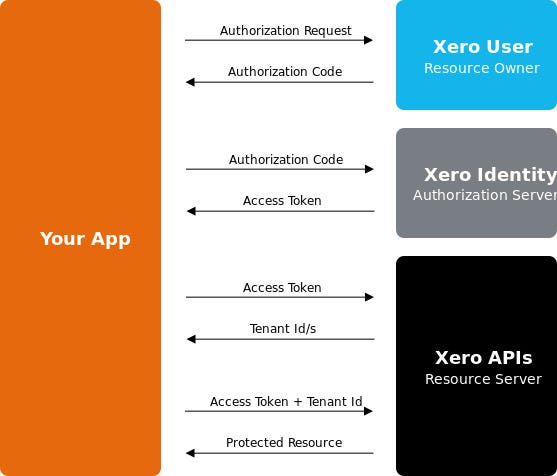
Xero Authentication Flow
The authentication process involves several steps to ensure secure access to the API.
https://developer.xero.com/documentation/guides/oauth2/auth-flow
In short, the steps are:
-
Login: Direct the user to log in using their Xero credentials on the Xero website through a browser.
-
Request Authorization: During login, the user will be prompted to authorize your app to access the API on their behalf.
-
Receive Authorization Code: After authorization, Xero redirects the user and provides an authorization code in the redirect URL. Capture this code from the redirect URL.
-
Exchange Authorization Code for Tokens: Exchange the authorization code for access and refresh tokens by sending a POST request to the token endpoint.
-
Get Xero Organizations/Tenants ID: Since each user may have more than one Xero organization/tenant, we should clarify the tenant ID we intend to use in each API request. To obtain the IDs, we need to send a GET request to the API using the obtained access token.
-
Access API: Use the access token and tenant ID to interact with the Xero API.
Walkthrough The Steps 🚶
Now, let’s dive into the code. We will walk through each step and its VBA solution. The code shown here is a simplified version; the full implementation, which includes error handling, debug logging, and other features, can be found in my GitHub repository.
1. Direct User to Login and Obtain Authorization Code
Here’s the main procedure for this step:
''
' Direct user to login and authenticate in Xero website via browser.
' Official documentation: https://developer.xero.com/documentation/guides/oauth2/auth-flow/#1-send-a-user-to-authorize-your-app
'
' @class XeroAuthenticator
' @implements IWebAuthenticator v4.*
' @method Login
'
' Note: This method updates the 'AuthorizationCode' property.
''
Public Sub Login()
    ' Open browser using ChromeDevProtocols framework
    Dim objBrowser As New CDPBrowser
    objBrowser.start name:="edge", appUrl:=Me.GetLoginUrl, cleanActive:=True, reAttach:=True

    ' Boolean values to track login completion
    Dim auth_IsApprove As Boolean
    Dim auth_IsError As Boolean

    ' Wait for login to complete, either by approval or error
    Do
        ' Checks if the current URL of the browser matches the predetermined redirect URL
        auth_IsApprove = auth_LoginIsApproval(objBrowser)
        ' Checks if the current HTML page rendered in the browser contains an error message in the title.
        auth_IsError = auth_LoginIsError(objBrowser)
        ' Sleep to avoid overloading the system
        objBrowser.sleep 1
    Loop Until auth_IsApprove Or auth_IsError

    ' Handle errors or extract the authentication code
    If auth_IsError Then
        ' Raise error
        Err.Raise 11040 + vbObjectError, "OAuthDialog", auth_LoginExtractError(objBrowser)
    Else
        ' Extracts the authentication code from the current URL of the browser
        Me.AuthorizationCode = auth_LoginExtractCode(objBrowser)
        If Me.AuthorizationCode = "" Then
            ' Raise error
            Err.Raise 11040 + vbObjectError, "OAuthDialog", "Login was canceled"
        End If
    End If
End Sub
The login process involves the following steps:
-
Open Browser: The login process starts by opening a browser using the ChromeDevProtocols (CDP) framework. As mentioned earlier, Internet Explorer is no longer supported. Thanks to the CDP framework, we can use Chrome or Edge with VBA, bypassing the deprecated Internet Explorer.
-
Track Login Status: Boolean variables auth_IsApprove and auth_IsError are used to track the login status.
-
Wait for Completion: A loop is used to wait for the user to complete the login process. It checks if the current URL matches the redirect URL (indicating approval) or if an error message is found.
-
Handle Results: If an error occurs, an appropriate message is displayed. If login is successful, the AuthorizationCode property is set with the extracted authentication code. If the login is canceled, an error message is shown.
This step ensures that the user is logged in and an authorization code is obtained, which will be used in the next steps to get access tokens and interact with the Xero API.
2. Exchange Authorization Code for Tokens
Most of the hard work in handling web requests and responses for this project is carried by the VBA-Web framework. It simplifies working with complex web services and APIs, as demonstrated in this process. 👇
''
' Exchanges the current AuthorizationCode for new access and refresh tokens.
' Official documentation: https://developer.xero.com/documentation/guides/oauth2/auth-flow/#3-exchange-the-code
'
' @class XeroAuthenticator
' @implements IWebAuthenticator v4.*
' @method GetNewToken
' @param {WebClient} Client - The WebClient instance to use for the token exchange request.
'
' Note: This method uses the 'ClientId', 'ClientSecret', 'AuthorizationCode', and 'auth_RedirectUrl' properties.
''
Private Sub GetNewToken(Client As WebClient)
    Dim auth_TokenClient As WebClient
    Dim auth_Request As New WebRequest
    Dim auth_Body As New Dictionary
    Dim auth_Response As WebResponse

    ' Clone the provided WebClient instance to avoid accidental interactions
    Set auth_TokenClient = Client.Clone
    Set auth_TokenClient.Authenticator = Nothing
    auth_TokenClient.BaseUrl = "https://identity.xero.com/"

    ' Prepare the token request
    auth_Request.Resource = "connect/token"
    auth_Request.Method = WebMethod.HttpPost
    auth_Request.RequestFormat = WebFormat.FormUrlEncoded
    auth_Request.ResponseFormat = WebFormat.Json
    auth_Request.SetHeader "authorization", "Basic " & Base64Encode(Me.ClientId & ":" & Me.ClientSecret)

    ' Prepare the request body
    auth_Body.Add "code", Me.AuthorizationCode
    auth_Body.Add "redirect_uri", auth_RedirectUrl
    auth_Body.Add "grant_type", "authorization_code"
    Set auth_Request.Body = auth_Body

    Set auth_Response = auth_TokenClient.Execute(auth_Request)

    ' Response 401 - auth code might be expired
    ' Handle unauthorized (401) response by attempting to re-login and update the AuthorizationCode
    If auth_Response.StatusCode = WebStatusCode.Unauthorized Then
        ' Clear expired auth code and token
        Me.Logout

        ' Re-login and update the auth code
        Me.Login
        auth_Request.Body("code") = Me.AuthorizationCode

        ' Re-attempt request to get token
        Set auth_Response = auth_TokenClient.Execute(auth_Request)
    End If

    ' Update token properties if the token request is successful
    If auth_Response.StatusCode = WebStatusCode.Ok Then
        Me.AccessToken = auth_Response.Data("access_token")
        Me.AccessTokenExpiration = DateAdd("s", CLng(auth_Response.Data("expires_in")), Now)
        If auth_Response.Data.Exists("refresh_token") Then
            Me.RefreshToken = auth_Response.Data("refresh_token")
            Me.RefreshTokenExpiration = DateAdd("d", 60, Now)
        End If
    Else
        ' Raise an error if the token request is not successful
        Err.Raise 11041 + vbObjectError, "XeroAuthenticator.GetNewToken", auth_Response.StatusCode & ": " & auth_Response.Content
    End If
End Sub
This process performs the following steps:
-
Prepare the Token Request: Set the required headers, request body, and other parameters. Use Base64Encode to encode the ClientId and ClientSecret for the authorization header.
-
Execute the Token Request: Send the request using the provided WebClient instance.
-
Handle Unauthorized Requests: If the request returns a 401 status code (unauthorized), attempt to re-login and update the AuthorizationCode, then retry the token request.
-
Update Token Properties: If the token request is successful (200 status code), update the AccessToken, AccessTokenExpiration, RefreshToken, and RefreshTokenExpiration properties with the new values.
-
Handle Errors: If the token request fails, raise an appropriate error with the status code and content of the response.
This step ensures that you have valid access and refresh tokens, which are necessary for making authorized API calls to Xero.
3. Get Xero Organizations/Tenants ID
Here’s the main procedure for this step:
''
' Requests the list of authorized Xero organizations/tenants from the Xero API.
' Official documentation: https://developer.xero.com/documentation/guides/oauth2/auth-flow/#5-check-the-tenants-youre-authorized-to-access
'
' @class XeroAuthenticator
' @implements IWebAuthenticator v4.*
' @method GetTenant
' @param {WebClient} Client - The WebClient instance to use for the API request.
'
' Note: This method uses the 'AccessToken' property and updates the 'DTenantsId' dictionary.
''
Public Sub GetTenant(Client As WebClient)
    Dim auth_TenantClient As WebClient
    Dim auth_Request As New WebRequest
    Dim auth_Body As New Dictionary
    Dim auth_Response As WebResponse

    ' Clear the 'DTenantsId' dictionary
    If DTenantsId.Count > 0 Then
        DTenantsId.RemoveAll
    End If

    ' Clone the provided WebClient instance to avoid accidental interactions
    Set auth_TenantClient = Client.Clone
    Set auth_TenantClient.Authenticator = Nothing
    auth_TenantClient.BaseUrl = "https://api.xero.com/"

    ' Prepare the API request to retrieve the list of authorized tenants
    auth_Request.Resource = "connections"
    auth_Request.Method = WebMethod.HttpGet
    auth_Request.RequestFormat = WebFormat.FormUrlEncoded
    auth_Request.ResponseFormat = WebFormat.Json
    auth_Request.SetHeader "Authorization", "Bearer " & Me.AccessToken

    Set auth_Response = auth_TenantClient.Execute(auth_Request)

    ' Process the API response
    If auth_Response.StatusCode = WebStatusCode.Ok Then
        If auth_Response.Data.Count > 0 Then
            ' Load response into "DTenantsId" property
            Dim TenantDict As Dictionary
            For Each TenantDict In auth_Response.Data
                DTenantsId(CStr(TenantDict("tenantName"))) = CStr(TenantDict("tenantId"))
            Next TenantDict
        Else
            ' Raise an error if the API response data is empty
            Err.Raise 11041 + vbObjectError, "XeroAuthenticator.GetTenant", _
                auth_Response.StatusCode & ": " & auth_Response.Content & vbNewLine & _
                "Empty response; no connected organization, need to authorize and connect through Login"
        End If
    Else
        ' Raise an error if the API request is not successful
        Err.Raise 11041 + vbObjectError, "XeroAuthenticator.GetTenant", _
            auth_Response.StatusCode & ": " & auth_Response.Content
    End If
End Sub
This process performs the following steps:
-
Clear Existing Data: The DTenantsId dictionary, which stores the list of tenants, is cleared to make way for new data.
-
Prepare the API Request: Set up the API request to retrieve the list of authorized tenants.
-
Execute the Request: Send the request using the provided WebClient instance.
-
Process the Response: If the request is successful (200 status code), the tenant information is stored in the DTenantsId dictionary. If the response is empty (no connected organizations), a message is displayed, and an error is raised.
-
Handle Errors: An error is raised if the API request fails.
As mentioned earlier, we should clarify the tenant ID we intend to use for each API request. This step ensures you have the necessary tenant IDs to make authorized API calls to Xero.
4. Ready to Access API
At this point, we have all the required data to access the API. All that remains is to ensure the data is included in each API request header. Thanks to the VBA-Web framework, this is quite simple. 😎
The VBA-Web framework provides an authenticator class called IWebAuthenticator, which we can implement for our custom XeroAuthenticator class. The framework provides access to the request object before it is executed via the IWebAuthenticator class.
Here’s the procedure we’ll include for each API request:
''
' Hook for taking action before a request is executed; used for setting up required request headers for API calls.
' This method is called before every API request made to the Xero API.
'
' Xero official documentation on required headers for API calls:
' https://developer.xero.com/documentation/guides/oauth2/auth-flow/#6-call-the-api
'
' @class XeroAuthenticator
' @implements IWebAuthenticator v4.*
' @method IWebAuthenticator_BeforeExecute
' @param {WebClient} Client - The WebClient instance that is about to execute the request.
' @param in|out {WebRequest} Request - The request object that is about to be executed.
''
Private Sub IWebAuthenticator_BeforeExecute(ByVal Client As WebClient, ByRef Request As WebRequest)
    ' Ensure a valid access token is available for the API request
    Me.GetToken Client

    ' Set the 'Authorization' header with the current access token
    Request.SetHeader "Authorization", "Bearer " & Me.AccessToken

    ' Allow the user to select the Xero organization/tenant for the API request
    Dim SelectedTenantId As String
    SelectedTenantId = SelectTenant(Client)

    ' Set the 'xero-tenant-id' header with the selected tenant ID
    Request.SetHeader "xero-tenant-id", SelectedTenantId
End Sub
This process performs the following steps for each API request:
-
Ensure Valid Access Token: Call the GetToken method to ensure the current access token is valid and not expired.
-
Set Authorization Header: Set the Authorization header with the current access token.
-
Select Tenant: Call the SelectTenant method to allow the user to select the Xero organization/tenant for the API request.
-
Set Tenant ID Header: Set the xero-tenant-id header with the selected tenant ID.
By following these steps, we can ensure that each API request is properly authenticated and directed to the correct Xero organization.
Other Features Good to Implement 🧐
To keep things simple, I haven’t explained some additional features that complement this project. For example, both the GetToken and SelectTenant methods mentioned are custom procedures. In short, here’s what they do:
-
GetToken Method: This method processes some logic to determine whether to use cached tokens, refresh tokens (as provided by the Xero API), or request new tokens. This helps with efficiency, as it avoids the need to request new tokens for each API request.
-
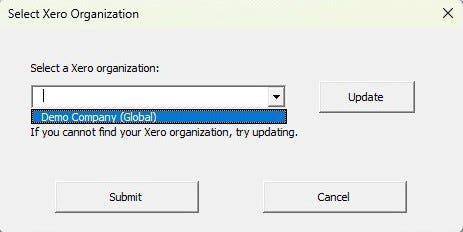
SelectTenant Method: This method calls a VBA user-form that allows the user to pick a Xero organization/tenant from the obtained list for which the request is intended. Below is a snapshot of the mentioned user-form.
SelectTenant user-form
You can find the complete features in my GitHub repository. 😏
Wrapping Up
Thanks for sticking with me through this guide! We’ve covered how to authenticate and set up your requests, from logging in and getting tokens to preparing API calls with the right headers and tenant IDs. 🎉
This is just the beginning! In the next part, I’ll dive into using the authenticator to make actual API calls. We’ll explore how to interact with Xero endpoints to automate your accounting tasks directly in Excel.
If you enjoyed this post, a clap and your comments would mean a lot! Your feedback is incredibly valuable and keeps me motivated to share more of my work! 💬
Next Part Update: Generate Report Directly From Excel!
As promised, for the continuation I’ve decided to make a demo video. This video will demonstrate how to use the customized Excel workbook to generate Xero’s financial reports directly from the workbook. Please do check it out! 👇
Thank you so much for your interest and time. Happy coding! 😊